If you’ve got your hands on an Xbox Series X, you already know it’s one of the most powerful consoles ever built — capable of 4K resolution, ray tracing, and lightning-fast load times. But here’s something many gamers miss: you can squeeze even more performance out of it with a 144Hz display.
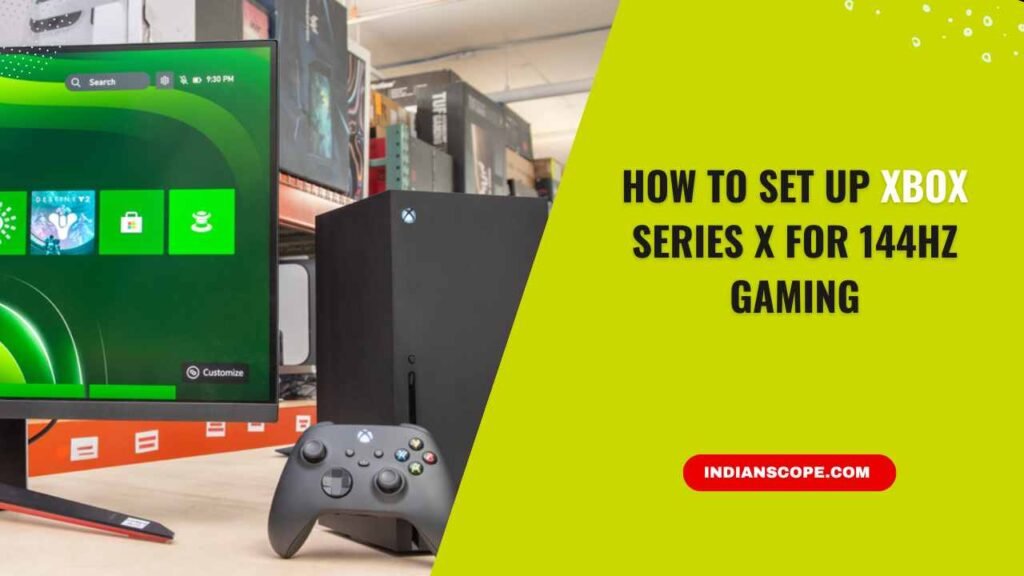
Yes, the Xbox Series X officially supports up to 120Hz, but with the right setup and hardware, you can easily connect it to a 144Hz monitor for smoother gameplay and sharper motion. The key lies in understanding compatibility, cables, and settings.
So, let’s walk through — step by step — how to set up your Xbox Series X for 144Hz gaming and unleash the console’s full potential.
What 144Hz Actually Means — and Why It Matters for Gaming
Before jumping into the setup, let’s clear one thing up: 144Hz refers to your display’s refresh rate — how many times per second it can redraw the image on the screen. A 144Hz display refreshes 144 times every second, compared to 60Hz (60 times per second).
Here’s why that matters:
- Smoother visuals: You’ll notice fewer motion blurs and ghosting, especially in fast-paced shooters and racing games.
- Lower input lag: Your actions feel more immediate, giving you a competitive edge.
- Less screen tearing: When combined with Variable Refresh Rate (VRR), gameplay feels fluid even when frame rates drop.
While the Xbox Series X’s top frame output is 120fps, a 144Hz monitor can still fully display those frames — and with VRR enabled, it adjusts dynamically for ultra-smooth motion.
Also Read: GTA 6 Release Date Delayed Again: What’s Going On and When Are We Actually Getting It?
Step 1: Check If Your Display Supports 120Hz or 144Hz
Before changing settings, make sure your monitor or TV supports high refresh rates.
Here’s how to verify:
- Check the manufacturer’s specs — look for “120Hz” or “144Hz refresh rate over HDMI.”
- Ensure it has HDMI 2.0 or HDMI 2.1 support. Older HDMI 1.4 ports may only run at 60Hz, even if your display claims 144Hz capability.
💡 Pro Tip:
If you’re using a PC gaming monitor, you may need to enable 144Hz manually in the monitor’s OSD (On-Screen Display) menu. Look for settings like Refresh Rate, Overclock Mode, or Gaming Mode.
Step 2: Use the Right HDMI Cable and Port
The Xbox Series X ships with a premium HDMI 2.1 cable — and this is crucial for high refresh rates and 4K support.
Here’s what to do:
- Plug your HDMI cable into the HDMI 2.1 port on both the Xbox and your display (it’s usually labeled “HDMI 2.1,” “Gaming,” or “144Hz”).
- Avoid cheap third-party HDMI cables — they might limit bandwidth and cause black screens or refresh rate drops.
If your monitor doesn’t have HDMI 2.1, don’t worry. You can still achieve:
- 120Hz at 4K via HDMI 2.1
- 120Hz or 144Hz at 1080p / 1440p via HDMI 2.0
Step 3: Adjust Xbox Display Settings
Now that your hardware is ready, it’s time to set things up on the console.
- Go to:
Settings → General → TV & Display Options - Under Resolution, select either 1440p or 1080p for maximum compatibility with 144Hz monitors. (Some 4K TVs support 120Hz only at lower resolutions.)
- Under Refresh Rate, choose 120Hz.
- Xbox caps at 120Hz output, but your 144Hz monitor will automatically sync to it and smooth out gameplay through VRR.
- Confirm the display change when prompted.
✅ You should now see noticeably smoother motion in menus and supported games.
Step 4: Enable Variable Refresh Rate (VRR)
To get the best performance and eliminate screen tearing, enable VRR (Variable Refresh Rate).
Here’s how:
- Go to Settings → General → TV & Display Options → Video Modes
- Check the box for “Allow variable refresh rate.”
This tells your monitor or TV to sync its refresh rate dynamically with the Xbox’s frame rate output — ensuring smooth transitions even when the frame rate dips below 120fps.
Step 5: Enable Performance Mode in Games
Not all games automatically run at 120fps. Some titles have separate “Quality” and “Performance” modes.
Here’s what you can do:
- Launch your game → Go to Settings → Video or Graphics Options
- Select Performance Mode to unlock higher frame rates (120fps when supported).
Games like Halo Infinite, Fortnite, Call of Duty: Warzone 2.0, and Forza Horizon 5 all offer 120fps modes that fully benefit from a 120–144Hz display.
Also Read: Is Duet Night Abyss on PS5? Everything You Need to Know
Troubleshooting: Fixing Common 144Hz Setup Issues
Even with the right setup, you might hit a few snags. Here’s how to handle them:
Issue 1: Xbox won’t show 120Hz option
- Lower resolution to 1080p or 1440p
- Use an HDMI 2.1 cable
- Verify your display’s firmware and settings (enable 144Hz or Gaming Mode)
Issue 2: Screen flickers or blacks out
- Disable VRR temporarily and re-enable it
- Try a different HDMI port
- Update your monitor or TV firmware
Issue 3: Stuck at 60Hz even after settings
- Some monitors require manual activation of 144Hz in their menu
- Ensure the HDMI input is set to “PC mode” or “High Bandwidth Mode”
Games That Support 120Hz on Xbox Series X
Here are some popular titles that take advantage of higher refresh rates:
- Halo Infinite
- Fortnite
- Doom Eternal
- Call of Duty: Warzone 2.0
- Rocket League
- Destiny 2
- Overwatch 2
- Rainbow Six Siege
- Gears 5
While Xbox caps at 120Hz, using a 144Hz monitor enhances VRR performance, reducing stutter and tearing for even smoother visuals.
Extra Tips for the Smoothest 144Hz Experience
- Turn off unnecessary image processing in your TV or monitor settings.
- Update your console and monitor firmware regularly.
- Use wired internet for reduced input delay.
- Keep your console cool — overheating can throttle performance.
- Use Game Mode on your display for the lowest latency.
Can Xbox Series X Run at 144Hz?
Technically, the Xbox Series X is designed for 120Hz, but a 144Hz monitor is fully compatible — and often delivers an even smoother experience when VRR is active.
When you combine:
- A 144Hz or 120Hz display
- A HDMI 2.1 connection
- Proper Xbox settings
- Performance Mode in supported games
You’ll unlock next-level smoothness, faster response times, and reduced input lag — all of which make competitive gaming feel more fluid and immersive.
So, while your Xbox might not officially hit 144fps, the difference between 60Hz and 120/144Hz is night and day. Once you experience that buttery-smooth gameplay, you’ll never want to go back.
Also Read: Is 300 Mbps Good for Gaming? (Full Breakdown for Gamers)
Final Thoughts
Setting up your Xbox Series X for 144Hz gaming isn’t complicated — it’s about using the right cable, tweaking a few settings, and ensuring your monitor or TV supports it.
Once done, you’ll experience gaming the way it’s meant to be — fluid, responsive, and ultra-smooth. Whether you’re dropping into Warzone, speeding through Forza, or battling in Halo Infinite, the jump in performance is impossible to ignore.
Because when every millisecond counts, a properly configured 144Hz setup could be the edge that helps you win.
FAQs
Can Xbox Series X output 144Hz natively?
No, it supports up to 120Hz natively, but 144Hz monitors can display it seamlessly using adaptive sync (VRR).
Do I need HDMI 2.1 for 144Hz?
For 4K gaming at high refresh rates, yes. But 144Hz at 1080p or 1440p also works via HDMI 2.0.
Why does my Xbox keep reverting to 60Hz?
Ensure your HDMI cable and port support higher refresh rates, and select 1080p/1440p in settings.
Does 144Hz make a difference in gaming?
Absolutely — gameplay feels smoother, input lag drops, and response time improves noticeably.
Pingback: Can You Play Xbox 360 Games On Xbox One? - Indian Scope